(Not finished yet)
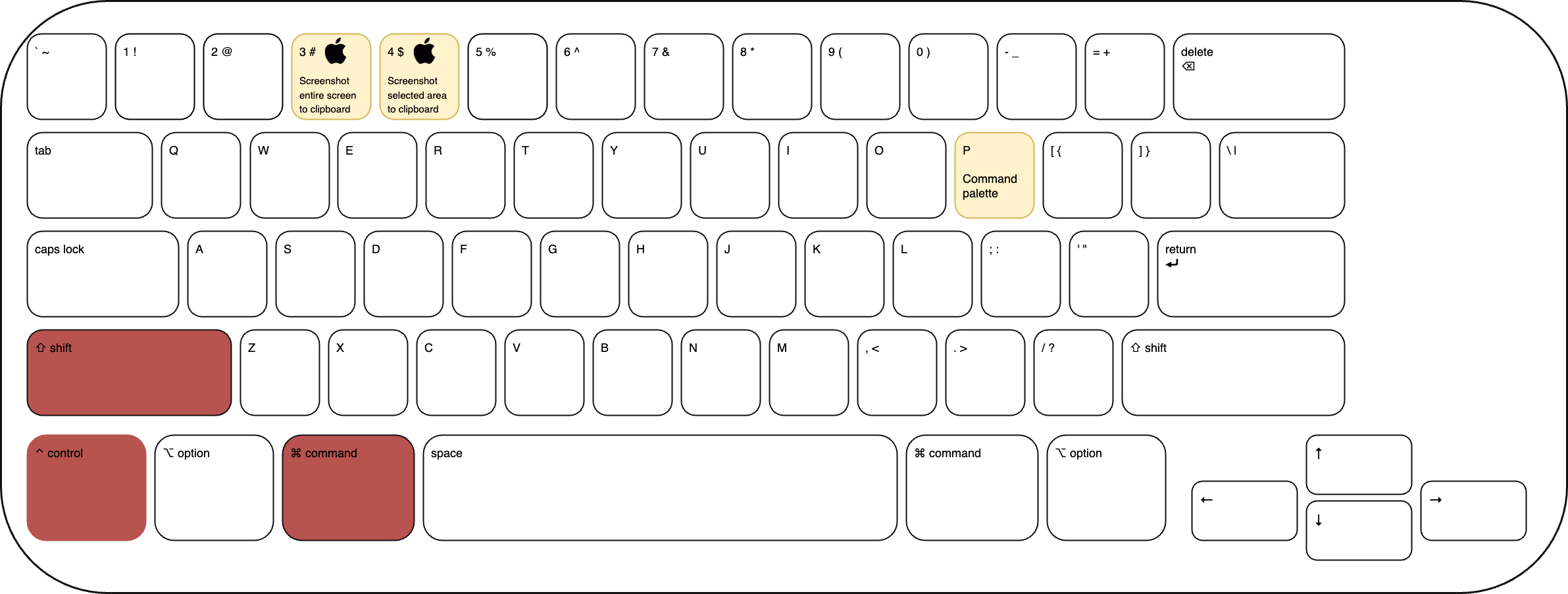
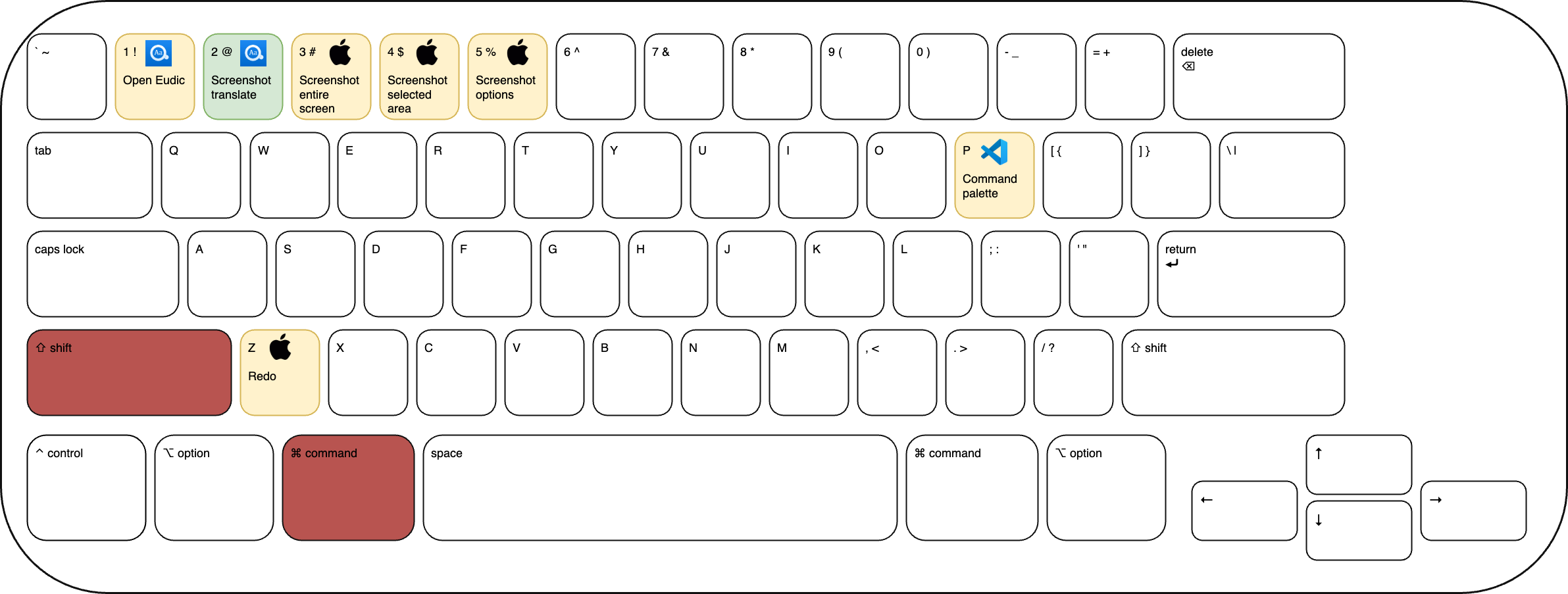
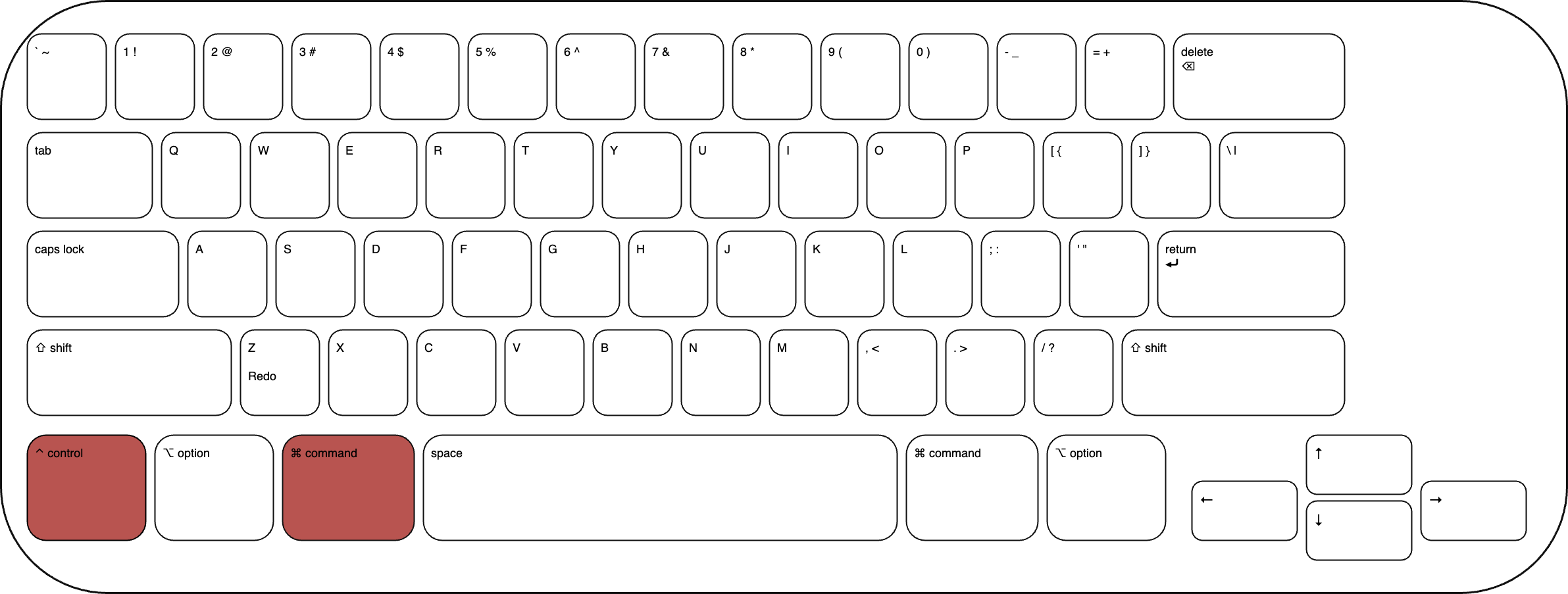
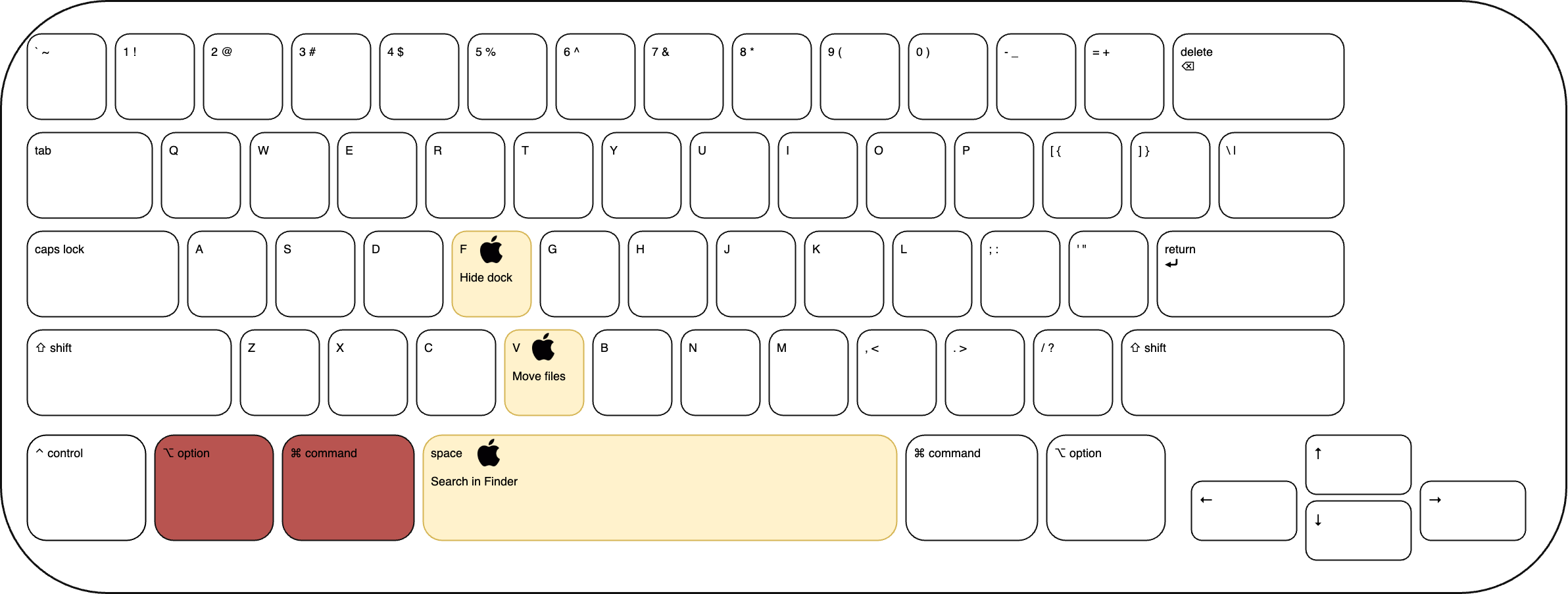
This post summarizes my custom MacOS keyboard shortcuts, designed to enhance my productivity and streamline my workflow on MacOS. In the figures below, green highlights the custom shortcuts I’ve set up, while yellow indicates the default MacOS shortcuts.
1 Ctrl Shortcuts
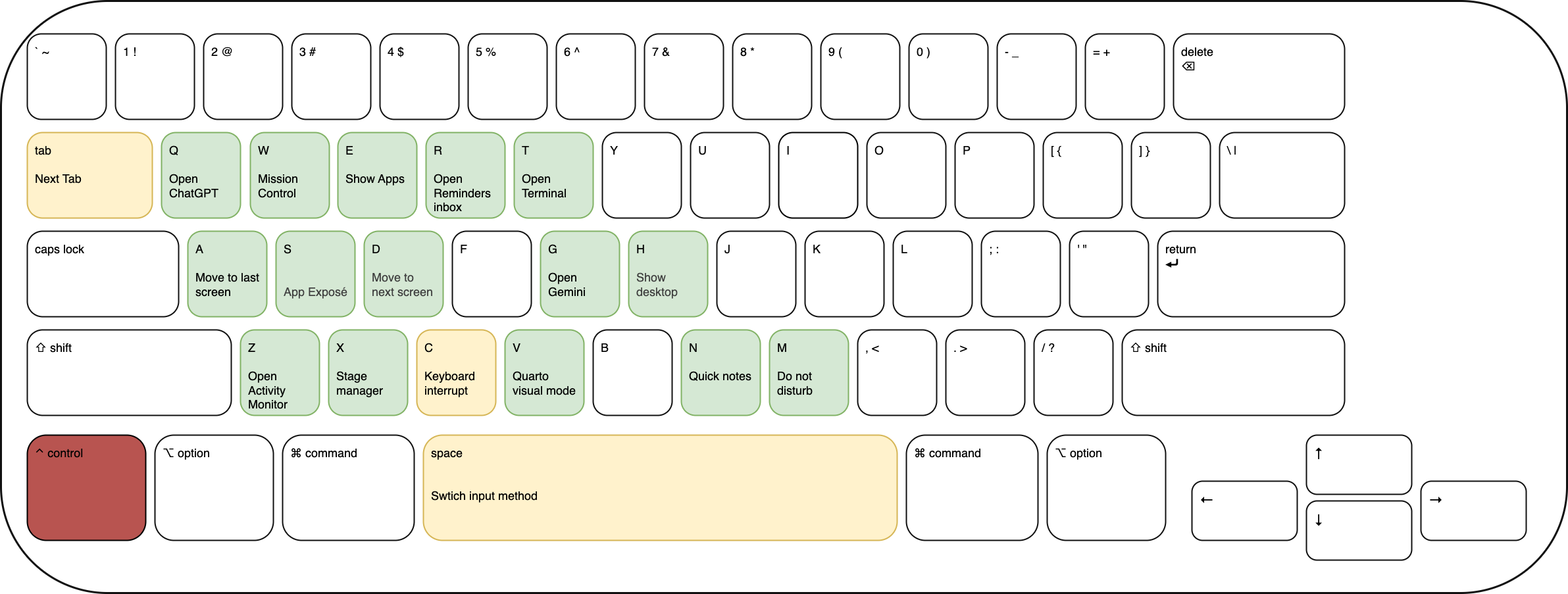
“Ctrl +” keyboard shortcuts is largely left unused in MacOS by default, so I customized many of them for my own usage.
Many of these are used to open very frequently used applications, like ChatGPT. For others like WeChat, I often use spotlight search (Cmd + Space) and type the first few letters to open it.
| Keyboard Shortcut | Related App | Usage | How to Configure |
|---|---|---|---|
| Ctrl + A | Mission Control | Move to last screen | System Settings - Keyboard - Keyboard Shortcuts - Mission Control - Move left a space |
| Ctrl + D | Mission Control | Move to last screen | System Settings - Keyboard - Keyboard Shortcuts - Mission Control - Move left a space |
| Ctrl + W | Mission Control | Mission Control | System Settings - Keyboard - Keyboard Shortcuts - Mission Control - Mission Control |
| Ctrl + S | Mission Control | App Exposé | System Settings - Keyboard - Keyboard Shortcuts - Mission Control - Application windows |
| Ctrl + E | Launchpad | Show Apps | System Settings - Keyboard - Keyboard Shortcuts - Spotlight - Show Apps |
| Ctrl + F | ChatGPT | Open ChatGPT | Create a shortcut in the Shortcuts app to open ChatGPT, assign keyboard shortcut to it |
| Ctrl + R | VSCode | Switch opened windows | VS Code settings - Keyboard Shortcuts - File: Open Recent |
| Ctrl + I | Reminders | Open Reminders inbox | Create a shortcut in the Shortcuts app to open Reminders inbox, assign keyboard shortcut to it |
| Ctrl + T | Terminal | Open Terminal | Create a shortcut in the Shortcuts app to open Terminal, assign keyboard shortcut to it |
| Ctrl + G | Gemini | Open Gemini | Add Gemini to dock (as a web app), create a shortcut in the Shortcuts app to open Gemini, assign keyboard shortcut to it |
| Ctrl + H | MacOS | Show desktop | System Settings - Keyboard - Keyboard Shortcuts - Mission Control - Show desktop |
| Ctrl + Z | Activity Monitor | Open Activity Monitor | Create a shortcut in the Shortcuts app to open Activity Monitor, assign keyboard shortcut to it |
| ? | MacOS | Stage Manager | System Settings - Keyboard - Keyboard Shortcuts - Mission Control - Turn Stage Manager on / off |
| Ctrl + X | Terminal | Keyboard Interrupt | - |
| Ctrl + V | VS Code | Quarto visual mode | VS Code Quarto settings |
| Ctrl + N | Notes | Quick notes | System Settings - Keyboard - Keyboard Shortcuts - Mission Control - Quick Note |
| Ctrl + M | MacOS | Turn Do Not Disturb on / off | System Settings - Keyboard - Keyboard Shortcuts - Mission Control - Turn Do Not Disturb on / off |
| Ctrl + Space | MacOS | Switch input method | System Settings - Keyboard - Keyboard Shortcuts - Input Sources - Select the previous input source |
2 Cmd Shortcuts
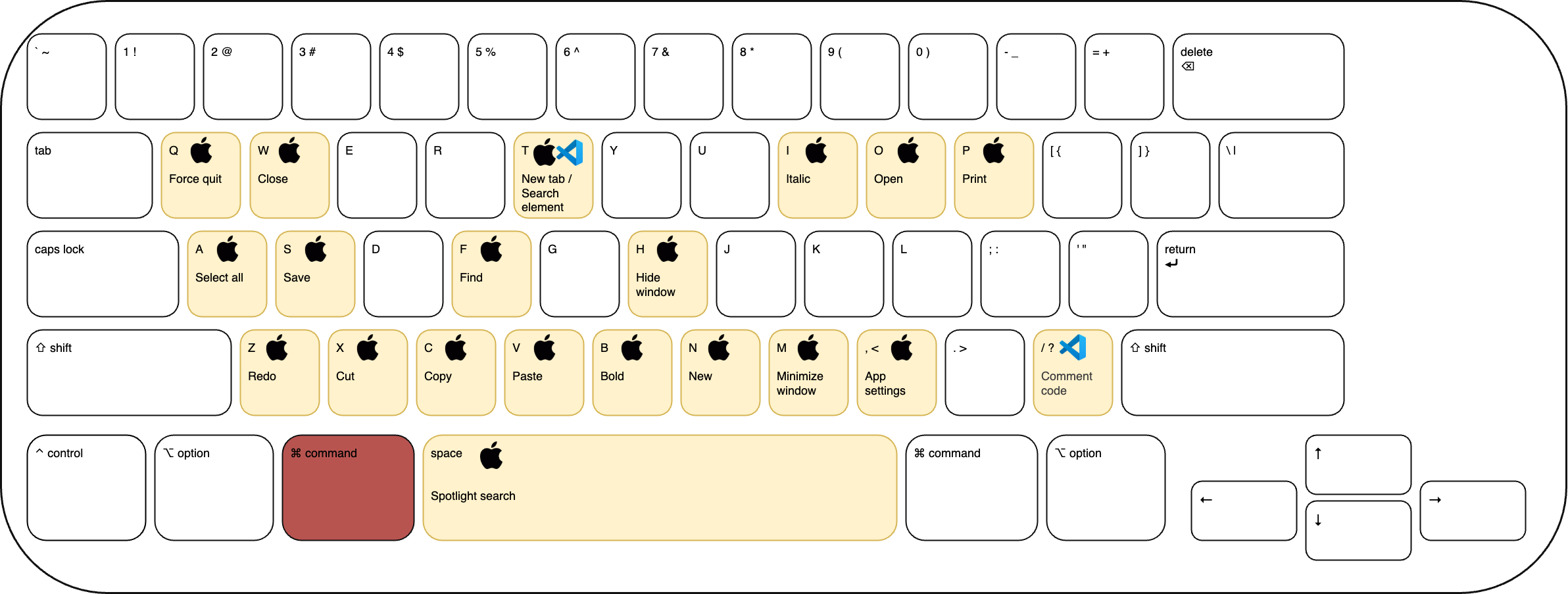
Command (Cmd) key is heavily used in MacOS by default. I only customized a few of them for my own usage.
| Keyboard Shortcut | Related App | Usage | How to Configure |
|---|---|---|---|
| Cmd + A | MacOS | Select all | - |
| Cmd + C | MacOS | Copy | - |
| Cmd + V | MacOS | Paste | - |
| Cmd + X | MacOS | Cut text | - |
| Cmd + Z | MacOS | Undo | - |
| Cmd + S | MacOS | Save | - |
| Cmd + Q | MacOS | Quit application | - |
| Cmd + W | MacOS | Close window | - |
| Cmd + T | VS Code | New tab | - |
| Cmd + N | VS Code | New window | - |
| Cmd + B | VS Code |
3 Option Shortcuts
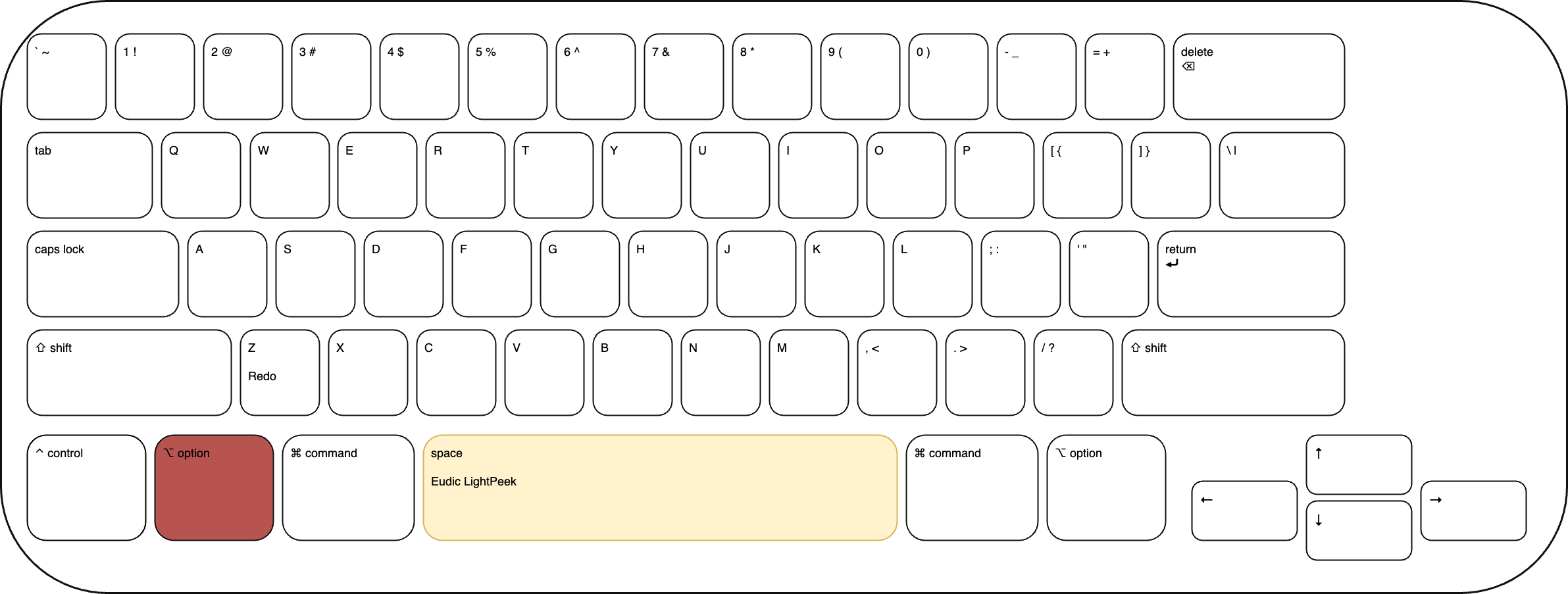
Option key is mainly used for special characters in MacOS by default. I only customized a few of them for my own usage.
4 Shift + Cmd Shortcuts
5 Cmd + Ctrl Shortcuts
6 Cmd + Option Shortcuts
7 Ctrl + Option Shortcuts
8 Shift + Cmd + Ctrl Shortcuts